Start with the source
Use the clearest copy of the image you are allowed to edit. Keep the original file separate.
AI remove text from image
Remove text from image online with a focused mask, a clear replacement instruction, and a result you can review before using.
Use the workspace below on this page. Keep the original file and review every AI result before sharing it.
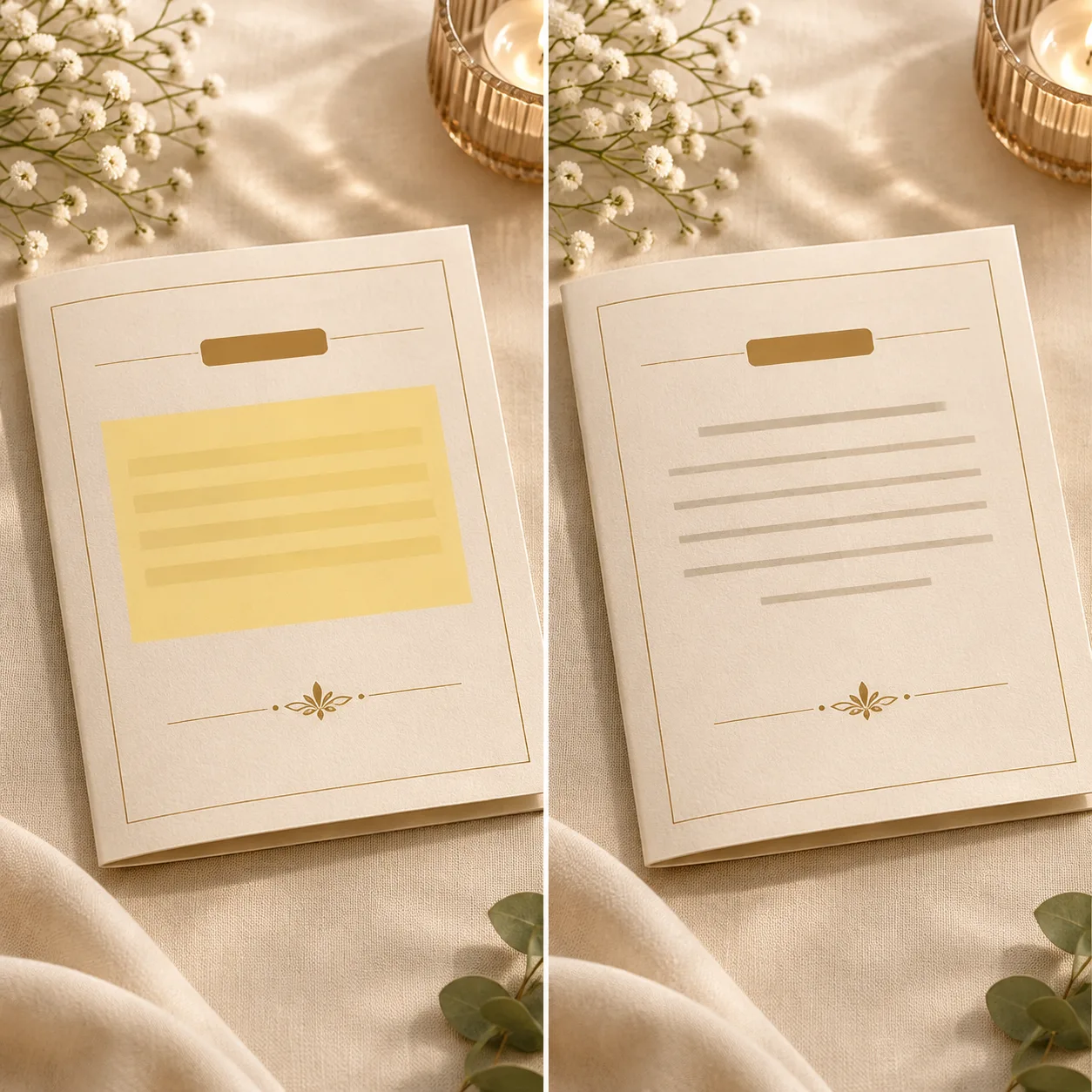
Remove one text area
The same workspace handles the upload, mask, instruction, credit check, and result review.
AI text remover
Use a direct JPG, PNG, or WebP image link.
Choose an image to start.
Base rate: 150 credits per edit · 1k · 1:1 · View Pricing
Sign in to generateOnly edit images you own or are licensed to change. Do not use this editor for identity documents, financial records, receipts, signatures, seals, or deceptive evidence.
Direct answer
Remove text from an image by marking only the letters and a small edge around them. The editor uses the unmarked scene as context instead of asking for a full-image redraw.
This page is for people who need to remove text from image files without rebuilding the whole composition. Upload an image, paint over the letters, explain what should be behind them, and let the editor focus on that marked area.
Removal workflow
Use the clearest copy of the image you are allowed to edit. Keep the original file separate.
Paint over the words and a narrow margin. Avoid covering nearby faces, objects, or texture.
Check the background, edges, lighting, and fine details before you download or share the result.
Best fit
Clean an outdated label or short promotional line from a permitted product photo.
Repair a date, name, or small text block while keeping the paper texture and layout.
Fix placeholder copy in a design draft when the editable source file is unavailable.
Use it responsibly
Only edit content you own or are permitted to change. This tool is for creative cleanup, mockups, and permitted production work.
Remove text questions
No. The intended edit is a focused text area. Marking less of the surrounding object helps keep the result stable.
Only if you own the image or have clear permission. Do not remove another person’s copyright or attribution.
AI reconstruction can change details. Keeping the original lets you compare, retry, or disclose the edit accurately.
No. Do not use the tool for IDs, passports, receipts, bank records, signatures, seals, or evidence.
The workspace accepts the image formats and size limit shown beside the upload control.
The editor must upload the source and mask to run the configured AI task. Use only images you are allowed to process.
Cover the full letters plus a small margin. A very large mask gives the model more unrelated area to change.
Patterns can be rebuilt, but dense or repetitive textures need a close review and sometimes a tighter retry.
Yes, for a poster you own or can edit. Mention the paper, ink, and nearby layout in the instruction.
The configured model and image pipeline determine the output. Check the generated file before using it in print.
The active model price is quoted and deducted from the signed-in account when the task is submitted; failed tasks follow the configured refund path.
Continue with the workspace