EVENT PROGRAMS
Update a finished event program
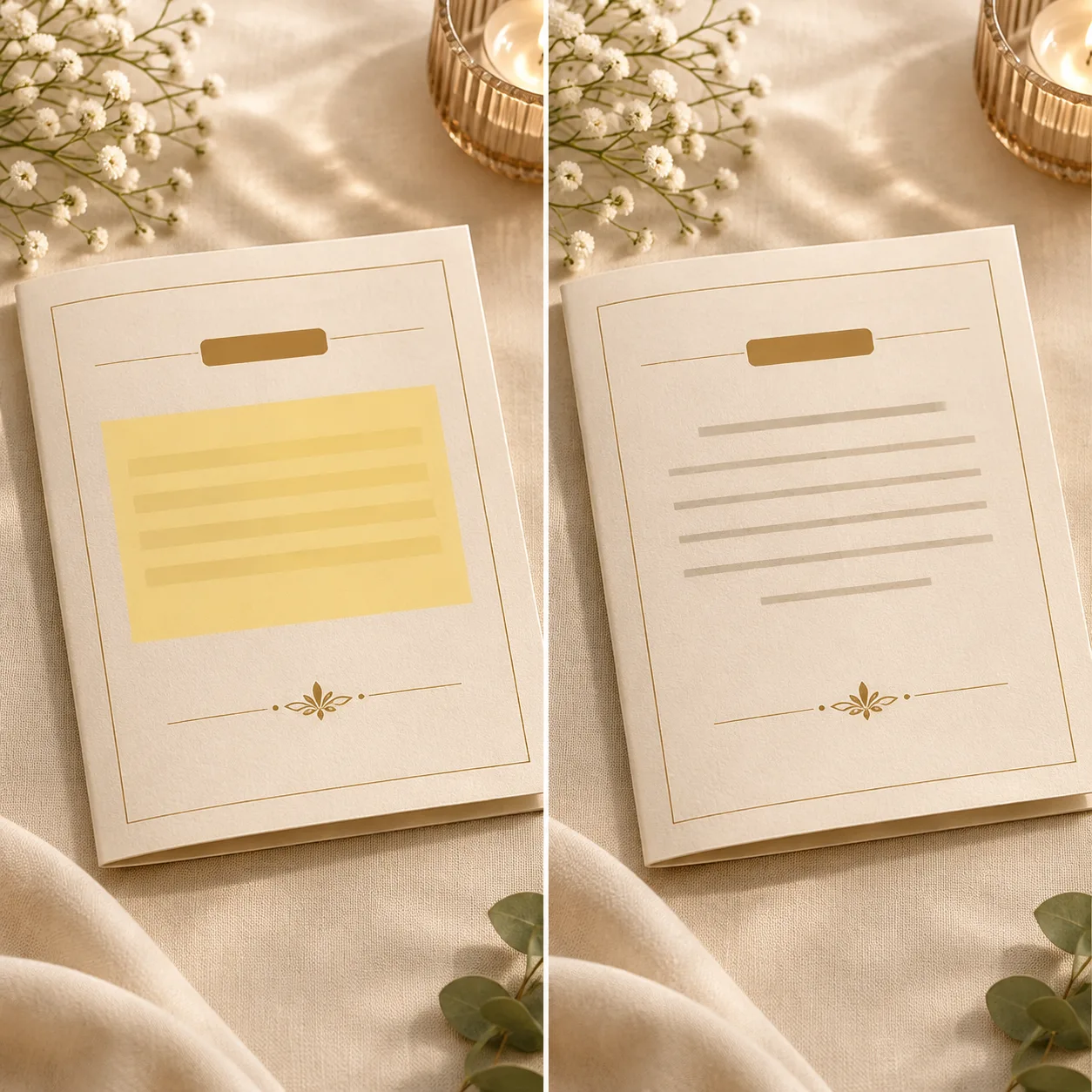
A speaker name changed after the layout was exported. Mark the old line, describe the replacement, and keep the paper texture, spacing, and surrounding schedule intact.
Marked text→Reviewed edit
AI image editing
Remove text from image files online by uploading an image, masking the unwanted letters, and describing the cleanup. The AI editor rebuilds the marked area while you review the rest of the scene.
Use images you own or are allowed to edit. AI output needs a human check.
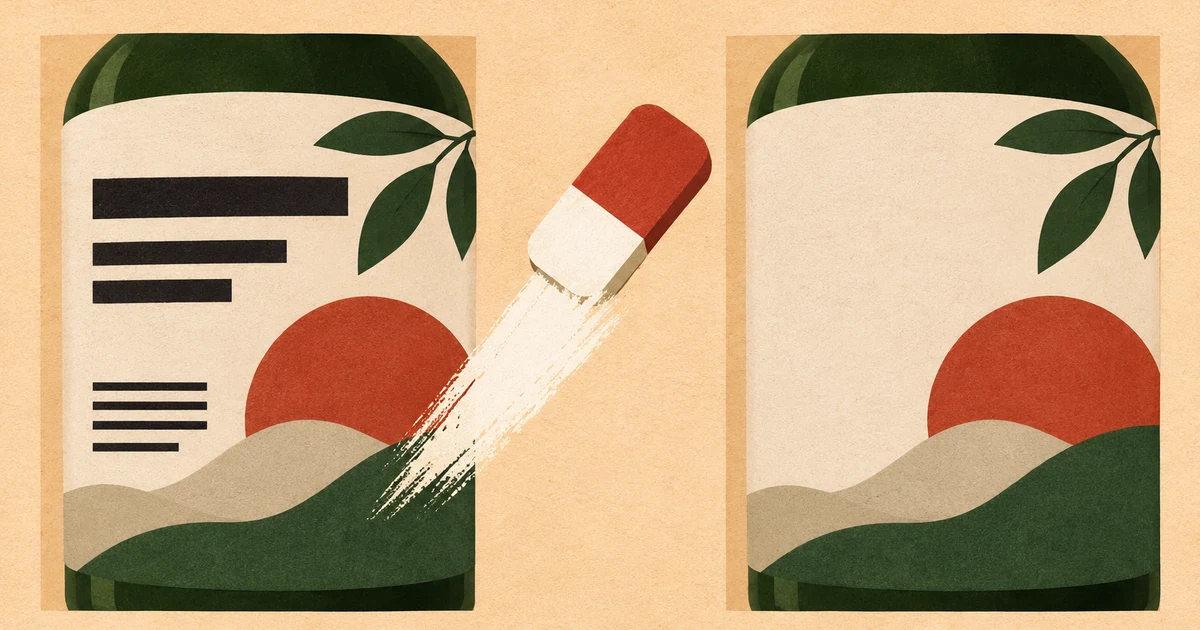
Mask firstGive the model a focused edit area
Describe the resultSay what should replace the text
Review outputCheck edges, faces, and fine detail
Use it here
Upload, mark, describe, and review without leaving the page.
AI text remover
Use a direct JPG, PNG, or WebP image link.
Choose an image to start.
Base rate: 150 credits per edit · 1k · 1:1 · View Pricing
Sign in to generateOnly edit images you own or are licensed to change. Do not use this editor for identity documents, financial records, receipts, signatures, seals, or deceptive evidence.
Before / after examples
Three visual examples of focused text edits. The final result depends on the source image, mask, and instruction.
EVENT PROGRAMS
A speaker name changed after the layout was exported. Mark the old line, describe the replacement, and keep the paper texture, spacing, and surrounding schedule intact.
PRODUCT LABELS
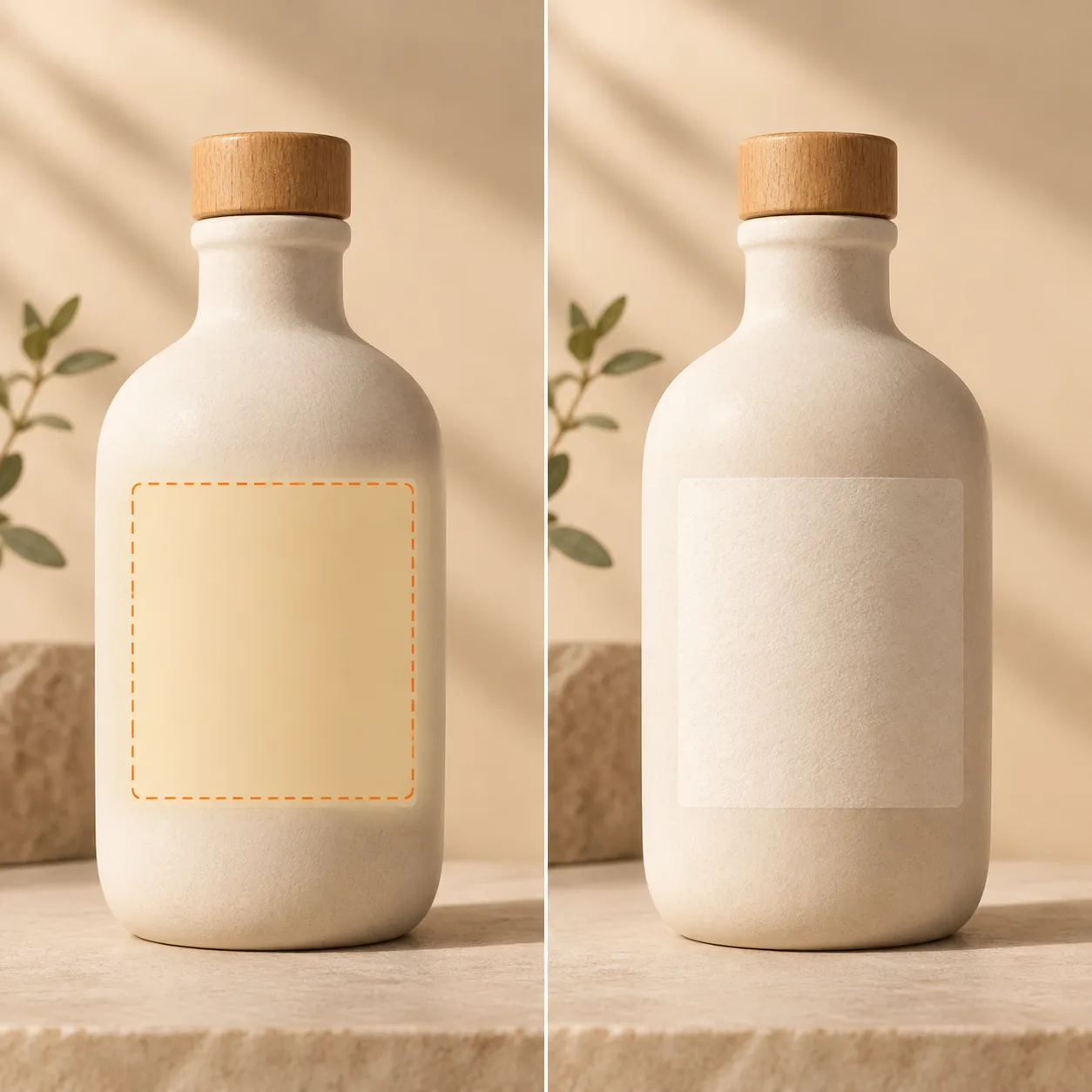
Remove a temporary label from a permitted product image while preserving the ceramic surface, soft light, and shape of the package.
POSTERS & MENUS
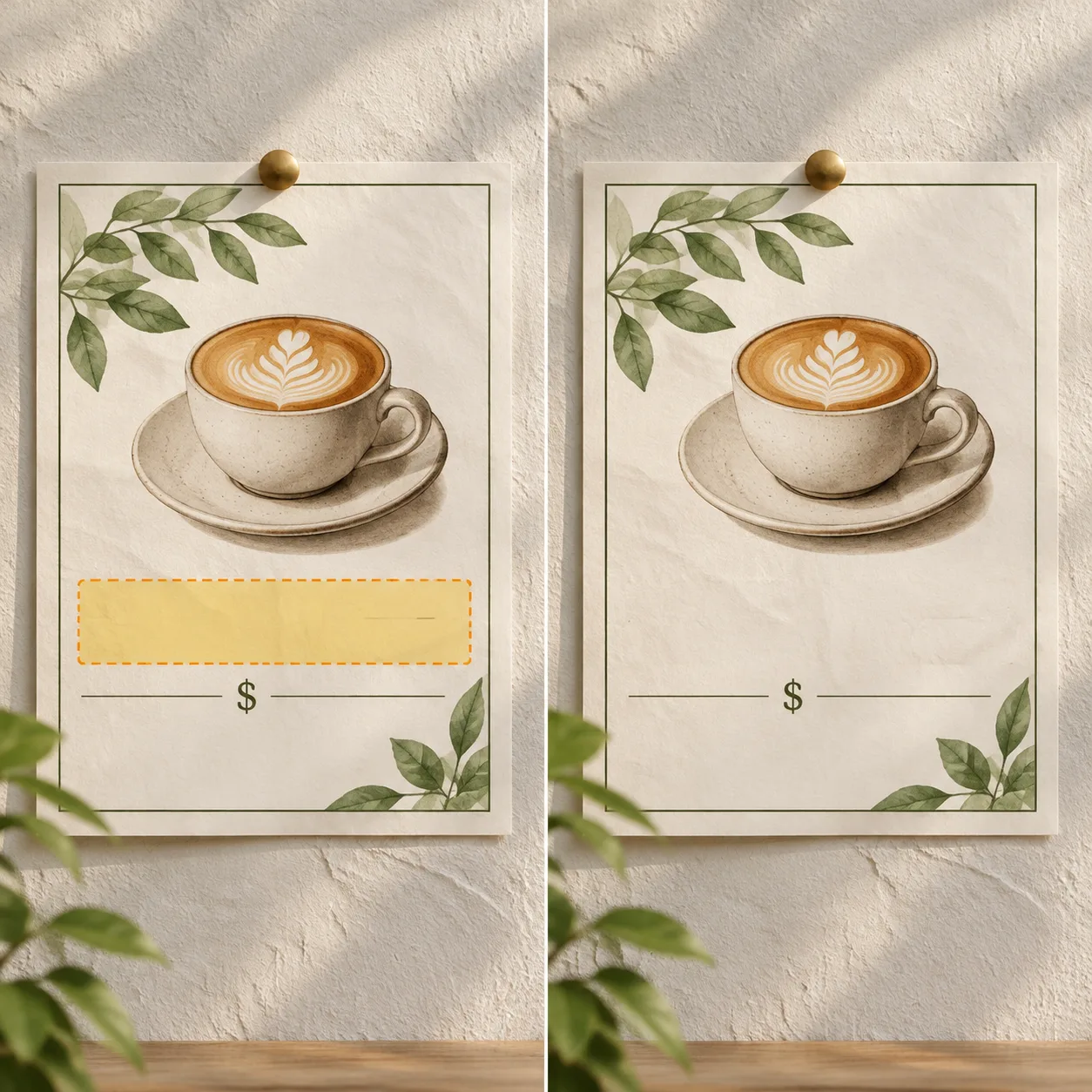
A menu or poster is already photographed. Edit the marked text area on the flat image instead of rebuilding the whole composition from scratch.
A focused workflow
Choose a clear image and let the editor prepare a reference for the AI task.
Use the local mask canvas to mark the letters. A tight mask gives the model less room to drift.
Tell the model to remove the text and rebuild the background, then wait for the task result.
Common starting points
Remove an old label or short promotional copy from a permitted product image with the remove text from photo workflow.
Clean a timestamp, notification, or interface label with edit text in screenshot.
Try a short text block on a background with enough texture for the blur text in image workflow.
Repair a misspelled label or stray letters with remove text from picture while keeping the surrounding composition in view.
Know the boundary
Removing text can change meaning. Use the tool for permitted creative and production edits, not for making records look authentic or hiding evidence.
Questions
Open the AI editor, upload an image, paint over the text, and describe the edit. The workspace submits the image and mask to an available image-editing model.
The editor uses the marked area as the edit focus and asks the model to preserve the unmarked scene. AI output can still vary, so inspect the result.
Only edit images you own or have permission to change. Do not erase another person’s copyright notice or attribution.
Clear images with readable text and enough surrounding background give the model more context. Very small letters and text over faces are harder.
The AI task workspace may require a signed-in account, depending on the site’s current model and usage settings.
The upload control accepts common image formats shown in the editor. The exact limits are displayed before you submit a task.
No. Do not use this service for identity documents, financial records, receipts, signatures, seals, or fabricated conversations.
Review the output, adjust the mask or wording, and submit another edit if your configured model and account allow it. Do not publish an unreviewed result.
Ready to try an edit?