Work on a copy
Preserve the original screenshot and confirm that you have permission to change the visual.
Screenshot text editor
Edit text in screenshot images by marking the old label and describing the replacement you want the AI editor to reconstruct.
Use the workspace below on this page. Keep the original file and review every AI result before sharing it.
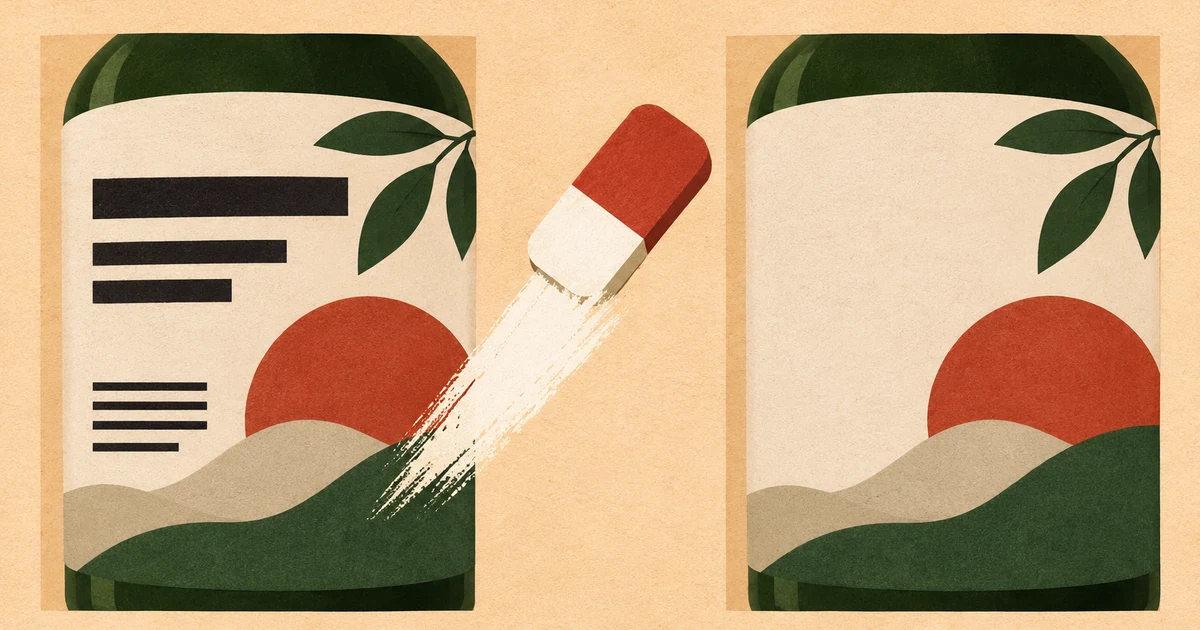
Screenshot editor
A screenshot is a flat image. Mask the text, explain the replacement, and check alignment against the surrounding interface.
AI text remover
Use a direct JPG, PNG, or WebP image link.
Choose an image to start.
Base rate: 150 credits per edit · 1k · 1:1 · View Pricing
Sign in to generateOnly edit images you own or are licensed to change. Do not use this editor for identity documents, financial records, receipts, signatures, seals, or deceptive evidence.
Screenshot editor
When the source UI or design file is gone, mark the label inside a copy of the screenshot and describe the replacement. Keep the original so the edited capture is not mistaken for an untouched record.
A screenshot is a visual file, so the safest workflow is to edit a copy you own or have permission to change. Keep the mask tight around the text and check borders, icons, and alignment in the result.
Screenshot editing method
Preserve the original screenshot and confirm that you have permission to change the visual.
Avoid covering icons, buttons, borders, or surrounding UI that the model needs as context.
Review font spacing, baselines, corners, icons, and neighboring UI after the edit.
Screenshot jobs
Update placeholder interface copy in a design presentation or internal prototype.
Prepare a permitted screenshot variation when a label or date has changed.
Create clearly labeled visual variations for testing, never to falsify a production record.
Use it responsibly
Only edit content you own or are permitted to change. This tool is for creative cleanup, mockups, and permitted production work.
Screenshot editing questions
The editor can approximate the surrounding design, but it does not guarantee the exact typeface, spacing, or rendering.
Do not create deceptive conversations or alter evidence. Use the tool only for permitted mockups or clearly labeled examples.
Check text baseline, icon alignment, borders, shadows, and any UI elements touching the mask.
Yes. Keep it separate and disclose meaningful changes when the screenshot may inform a decision.
Yes, if it is an image you own or are authorized to edit. Check the status bar, icons, and spacing afterward.
The editor uses visual context, but it does not promise an exact font match for every interface.
Use the original capture rather than a compressed copy so small type and borders remain clear.
Only in a permitted mockup, tutorial, or clearly labeled variation; never to falsify a record.
You can mark several nearby labels, but separate edits are easier to verify when the interface is dense.
Keep icons outside the mask and mention that surrounding controls should remain unchanged.
The workbench accepts image files. Export the specific PDF page as an image before uploading.
Continue with the workspace